All Prompts
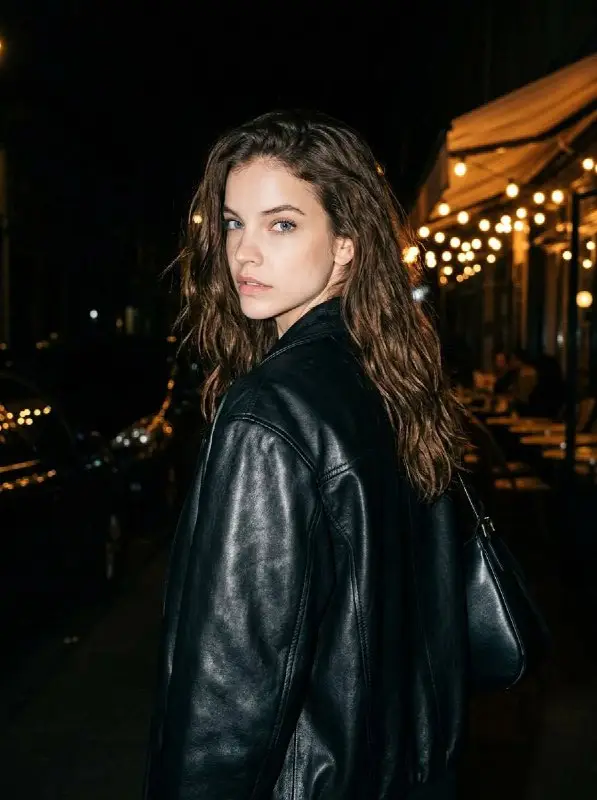
Young Woman in Black Leather Jacket on Urban Night Street
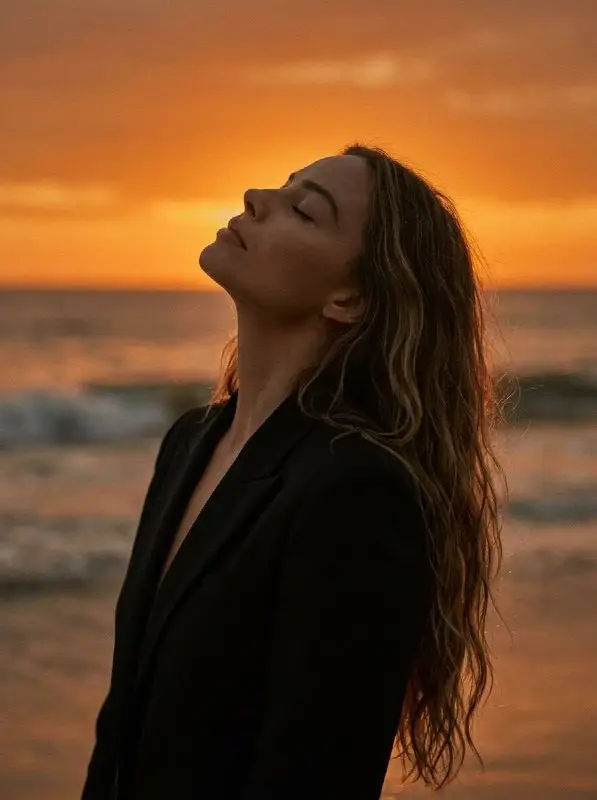
Peaceful woman in black blazer at beach sunset portrait
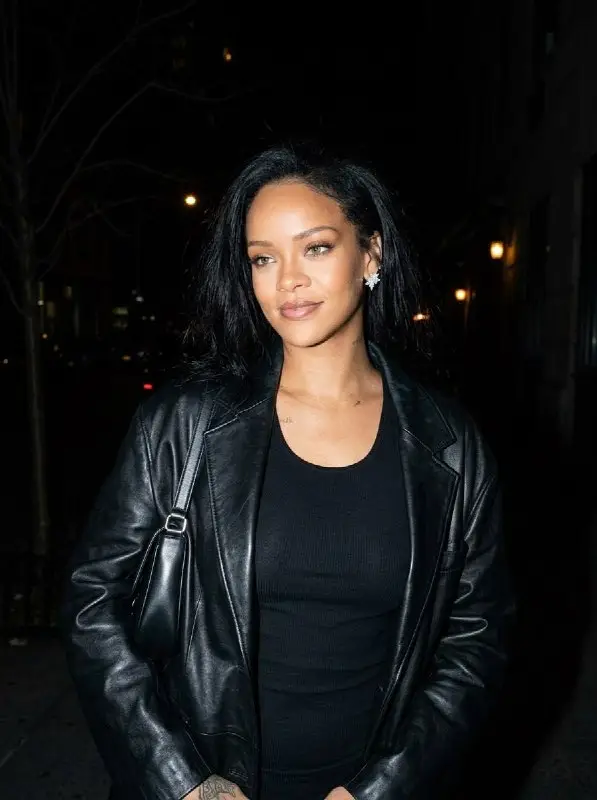
Chic woman in black leather jacket walking city street at night
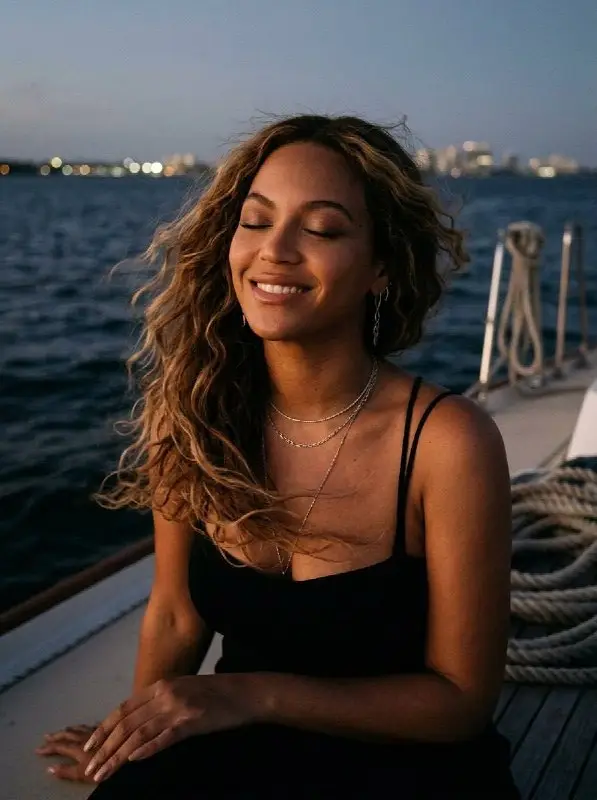
Happy woman smiling on a boat at twilight with city lights
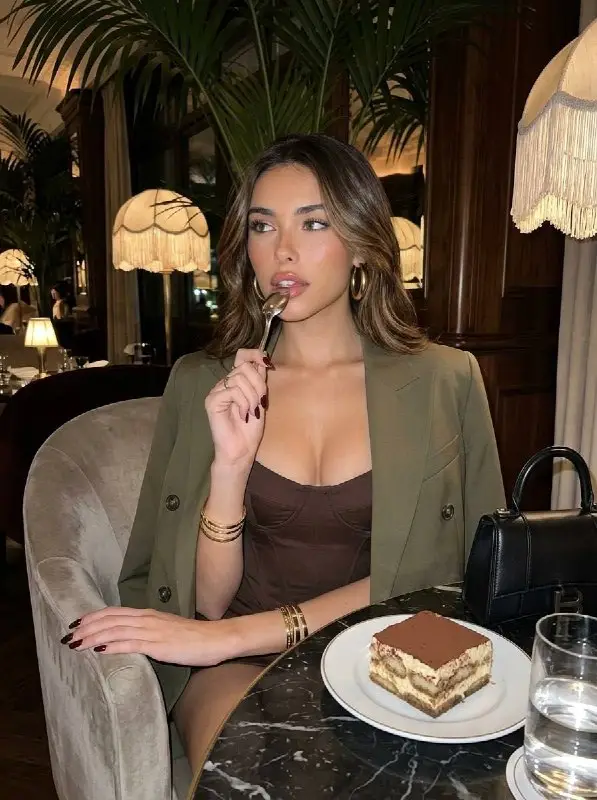
Woman Enjoying Dessert in a Stylish Upscale Restaurant
Women Gemini Prompts
Young Woman in Black Leather Jacket on Urban Night Street
Peaceful woman in black blazer at beach sunset portrait
Chic woman in black leather jacket walking city street at night
Happy woman smiling on a boat at twilight with city lights
Woman Enjoying Dessert in a Stylish Upscale Restaurant
Men Prompts
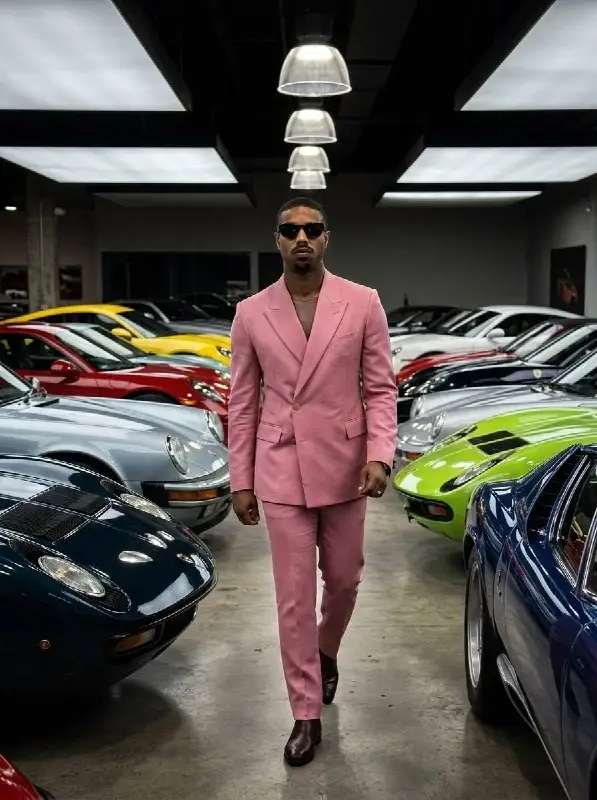
Stylish man in pink suit walking through luxury sports car garage
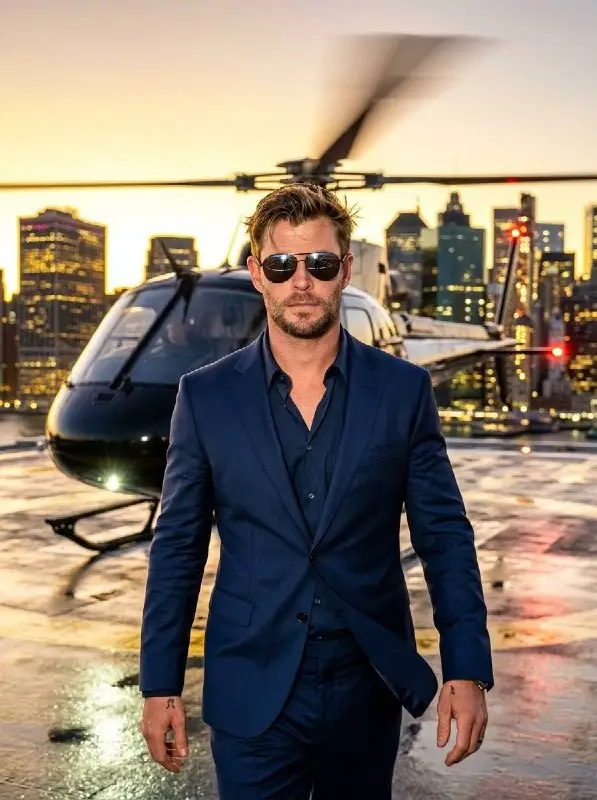
Sophisticated Man in Suit on Helipad with City Skyline Background
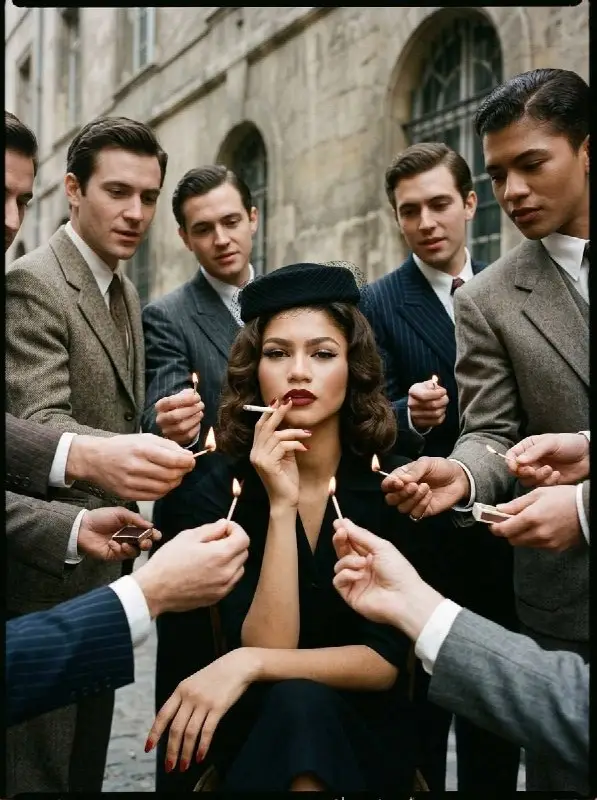
Elegant vintage woman in pillbox hat with men lighting cigarette
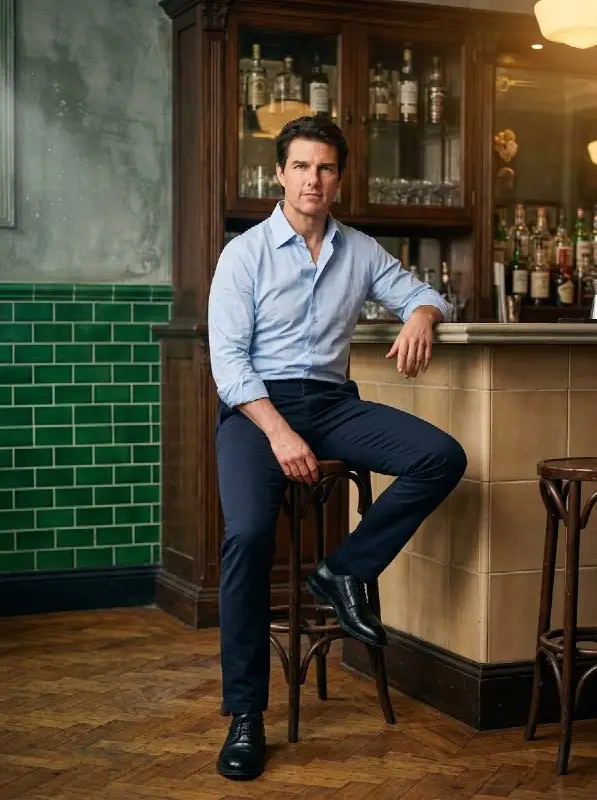
Confident Man in Blue Shirt Sitting at a Vintage Bar
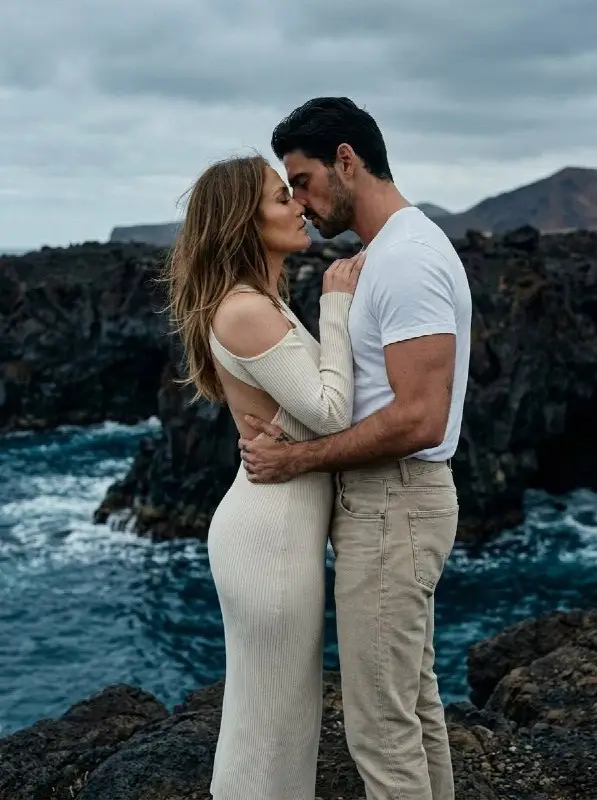
Romantic Couple Sharing Intimate Moment on Rocky Coastal Shoreline
Fashion & Style Prompts
Young Woman in Black Leather Jacket on Urban Night Street
Peaceful woman in black blazer at beach sunset portrait
Chic woman in black leather jacket walking city street at night
Woman Enjoying Dessert in a Stylish Upscale Restaurant

Woman Enjoying Breakfast in Bright Modern Cafe
Portrait Prompts
Young Woman in Black Leather Jacket on Urban Night Street
Peaceful woman in black blazer at beach sunset portrait
Chic woman in black leather jacket walking city street at night
Happy woman smiling on a boat at twilight with city lights
Woman Enjoying Dessert in a Stylish Upscale Restaurant
Cinematic & Fantasy Prompts

Serene Woman with White Angel Wings and Ethereal Tulle Dress
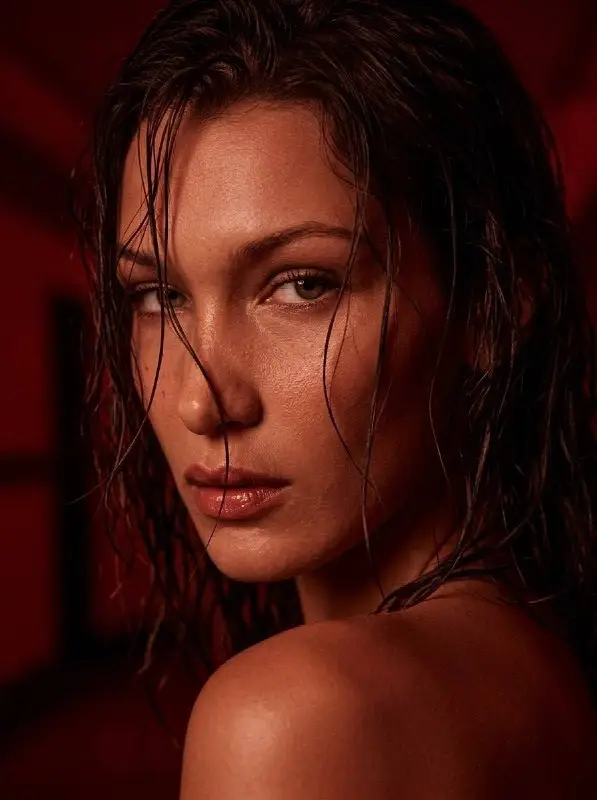
Moody Close Up Portrait of a Woman with Wet Hair
Sophisticated Man in Suit on Helipad with City Skyline Background
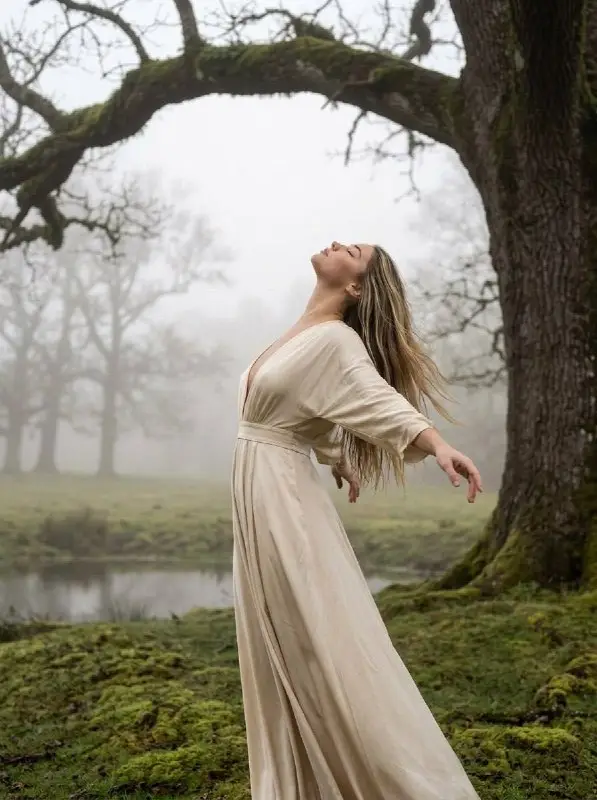
Woman in long flowing dress with arms outstretched in misty forest
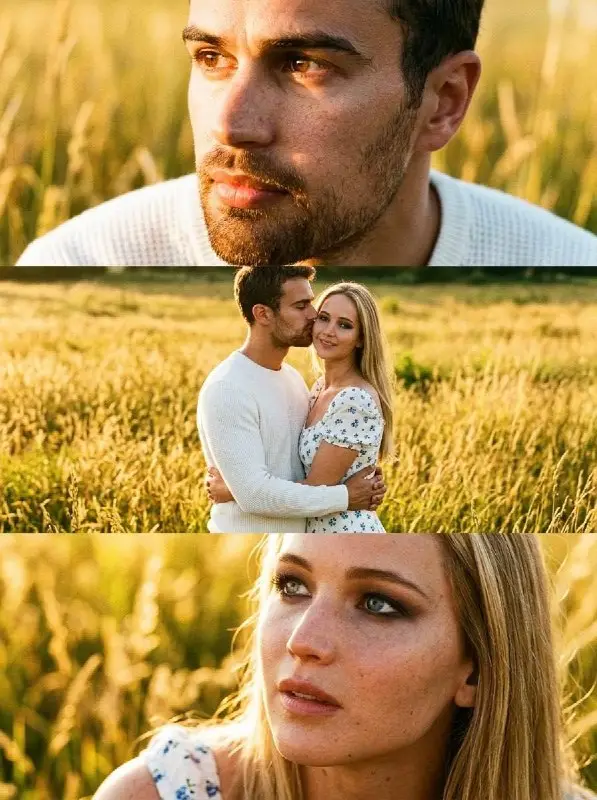
Cinematic portrait of a romantic couple in a sunlit field
Moody & Aesthetic Prompts
Young Woman in Black Leather Jacket on Urban Night Street
Peaceful woman in black blazer at beach sunset portrait
Chic woman in black leather jacket walking city street at night
Happy woman smiling on a boat at twilight with city lights
Woman Enjoying Dessert in a Stylish Upscale Restaurant
Realism Prompts
657 AI PromptsWinter Snow Prompts
136 AI PromptsTrending Prompts
123 AI PromptsVintage & Retro Prompts
114 AI PromptsArt & Drawing Prompts
95 AI PromptsSexy & Hot Gemini Prompts Prompts
94 AI PromptsBlack & White Prompts
88 AI PromptsCouple Prompts
87 AI PromptsOther Gemini Prompts Prompts
85 AI PromptsPoster Prompts
81 AI PromptsCelebrity Prompts
72 AI PromptsTraditional Prompts
67 AI PromptsCute Gemini Prompts Prompts
65 AI PromptsPremium Prompts
58 AI PromptsSelfie Prompts
53 AI PromptsBirthday Prompts
37 AI PromptsSaree Photos Gemini Ai Prompts Prompts
33 AI PromptsKids Gemini Prompts Prompts
24 AI PromptsNano Banana Prompts
8 AI PromptsStruggling to get quality results from Google’s Gemini AI? You’re not alone. Many users type vague instructions and end up with disappointing outputs that miss the mark completely.
Gemini prompts are specific text instructions that tell Google’s AI exactly what to create, generate, or help you with. They help anyone transform simple ideas into professional images, get intelligent assistance, and accomplish tasks without technical skills or expensive software.
In this guide, you’ll discover:
- What Gemini prompts are and how they work
- Proven techniques for image generation and photo editing
- Best practices for getting professional results
- Common mistakes to avoid
- Ready-to-use examples you can try right now
Whether you’re a content creator, marketer, student, or professional, this guide will show you exactly how to communicate with Gemini AI for exceptional results.
Let’s dive in.
What Are Gemini Prompts?
Gemini prompts are text-based instructions you provide to Google’s Gemini AI to generate images, edit photos, answer questions, or complete tasks. Unlike simple search keywords, prompts are conversational instructions that tell the AI exactly what you want.
Think of prompts as detailed briefs you’d give to a professional photographer or designer. Just like explaining your vision to a human collaborator, Gemini prompts require clarity, specificity, and context to produce the best results.
Unlike traditional image editing software that requires technical skills, Gemini prompts:
- Are faster because they work instantly through natural language
- Require no design experience or software knowledge
- Produce professional-quality results comparable to studio work
- Can be used by anyone who can describe what they want
For example, instead of spending hours learning Photoshop to create a cinematic portrait, you can simply describe the scene, lighting, and style you want, and Gemini generates it in seconds.
Gemini powers multiple AI capabilities including Nano Banana for fast image generation, Nano Banana Pro for advanced professional outputs, and text assistance across Google Workspace. The model uses advanced multimodal processing, meaning it understands both text instructions and image inputs simultaneously.
Why Gemini Prompts Are Important
Save Massive Amounts of Time
Traditional photo editing or content creation can take hours or days. With Gemini prompts, you can generate professional images, edit photos, or get assistance in seconds. A prompt that takes 30 seconds to write can replace hours of manual work, allowing creators to produce more content faster.
Achieve Professional Quality Without Skills
You don’t need to master complex software like Photoshop, Lightroom, or professional cameras. Gemini handles technical aspects like lighting, composition, color grading, and style automatically based on your description. This democratizes professional-quality content creation for everyone.
No Expensive Equipment Required
Professional photography typically requires thousands of dollars in camera equipment, lenses, lighting, and studio space. Gemini prompts let you create studio-quality images using just your smartphone and internet connection, making premium visuals accessible regardless of budget.
Consistent Results Every Time
Once you find a prompt formula that works, you can reuse it repeatedly for consistent branding and style. This is invaluable for businesses, content creators, and marketers who need cohesive visual identity across multiple pieces of content.
Endless Creative Possibilities
Gemini can generate anything you can imagine, from photorealistic portraits to surreal artistic compositions. You can experiment with styles, combine impossible scenarios, and create visuals that would be difficult or impossible to capture with traditional photography.
How Gemini Prompts Work
Understanding how Gemini prompts work will help you use them more effectively. Here’s the process broken down:
Step 1: Input Your Prompt or Upload Image
You start by either typing a text description or uploading an image you want to edit. For text-to-image, you describe what you want. For image editing, you upload a photo and describe the changes.
Step 2: The AI Analyzes Your Instructions
Gemini’s multimodal architecture processes your text instructions and any uploaded images simultaneously. It breaks down your prompt into components like subject, style, lighting, composition, and technical parameters.
Step 3: Advanced Reasoning and Planning
For complex prompts, Gemini uses thinking mode to reason through your request. It creates internal thought images to refine composition before producing the final output. This is especially powerful in Nano Banana Pro for professional-grade results.
Step 4: Image Generation
Based on your prompt analysis, Gemini generates your image using its trained models. Nano Banana produces results in seconds for quick creativity, while Nano Banana Pro delivers high-resolution outputs up to 4K with advanced controls.
Step 5: Refinement Through Conversation
You can continue the conversation to refine results. Ask for specific adjustments like changing colors, adding elements, or modifying composition without starting over. This iterative approach helps you achieve exactly what you envision.
The Anatomy of a Great Gemini Prompt
A well-crafted prompt typically includes:
- Subject: Who or what is in the image. Be specific about appearance, clothing, and characteristics. Example: “a young woman in professional attire” rather than just “person”
- Action: What is happening in the scene. This brings life and story to your image. Example: “walking confidently” or “sitting casually”
- Location/Setting: Where the scene takes place. Include environmental details for context. Example: “in a modern office lobby” or “on a city rooftop at sunset”
- Style/Mood: The visual aesthetic and emotional tone. Reference photography styles, art movements, or specific looks. Example: “cinematic 4K, moody lighting” or “bright Instagram editorial style”
- Technical Details: Camera angles, lighting type, resolution, and quality parameters. Example: “shot with 85mm portrait lens, golden hour lighting, 8K ultra HD”
Example of a complete prompt with each element highlighted:
“Create an ultra-realistic portrait of [Subject] a young professional man in dark blue suit [Action] standing confidently with arms crossed [Location] in a modern glass office building [Style] cinematic lighting with soft shadows, film photography aesthetic [Technical] shot with 50mm lens, shallow depth of field, 4K resolution, professional color grading.”
Key Elements of Effective Gemini Prompts
Subject and Description
The foundation of any great prompt is a clear, detailed subject description. Vague descriptions produce generic results.
- Be specific about physical characteristics, clothing, and details
- Include age, gender, ethnicity, hairstyle, and distinctive features when relevant
- Avoid generic terms like “person” or “man” – add descriptive qualifiers
Example: Instead of “a woman,” use “a confident 30-year-old woman with wavy dark hair wearing a red blazer and glasses.”
Style and Aesthetic
Style dramatically impacts your final result. Gemini understands various photography and art styles.
- Photorealistic: For natural, camera-like images. Mention camera equipment and film types. Example: “shot on Hasselblad 500C with Kodak Portra 400 film”
- Cinematic: For movie-like quality with dramatic lighting. Reference film styles or directors. Example: “cinematic film noir lighting, Blade Runner aesthetic”
- Editorial/Fashion: For high-end magazine quality. Reference publications. Example: “Vogue editorial style, high fashion photography”
- Vintage/Retro: For period-specific looks. Specify era and format. Example: “1980s polaroid aesthetic” or “1960s film photography”
Technical Parameters
These technical elements give you precise control over image quality and composition:
- Resolution: Specify quality level. Example: “4K,” “8K ultra HD,” “high resolution.” Higher resolution produces crisper details
- Aspect Ratio: Control image dimensions. Example: “16:9 for widescreen,” “1:1 for square Instagram,” “9:16 for vertical stories”
- Camera Angle: Control perspective. Example: “eye-level,” “low-angle shot,” “bird’s eye view,” “over the shoulder”
- Focal Length: Affects depth and perspective. Example: “35mm wide-angle,” “85mm portrait lens,” “telephoto compression”
- Depth of Field: Controls focus and blur. Example: “shallow depth of field,” “bokeh background,” “f/1.4 aperture”
Lighting and Mood
Lighting transforms the entire feel of your image. Be specific about light sources and atmosphere:
- Natural Light: “golden hour,” “blue hour,” “overcast soft light,” “dappled sunlight through trees”
- Studio Light: “softbox lighting,” “Rembrandt lighting,” “butterfly lighting,” “three-point lighting”
- Atmospheric: “moody and dramatic,” “bright and airy,” “neon lit,” “candlelit,” “foggy atmosphere”
- Time of Day: “sunrise,” “midday,” “sunset,” “twilight,” “midnight with moonlight”
Types of Gemini Prompts by Use Case
Portrait and Professional Headshot Prompts
These prompts create professional portraits perfect for LinkedIn, resumes, and business profiles.
- Ideal for: Professionals needing business headshots, job seekers, entrepreneurs
- Common features: Clean backgrounds, professional attire, confident expressions, proper lighting
- Example: “Create a professional headshot of a man in dark blue suit and tie, facing camera with confident smile, neutral gray background, studio lighting, 4K portrait quality”
Cinematic and Action Photography Prompts
Generate dramatic, movie-quality images with intense action and atmosphere.
- Ideal for: Content creators, social media posts, YouTube thumbnails, dramatic portraits
- Common features: Motion blur, dramatic lighting, smoke effects, intense expressions, movie poster aesthetics
- Example: “Ultra-realistic cinematic portrait of a warrior mid-battle, intense expression, flying debris and smoke, dramatic backlighting, motion blur, 4K film quality”
Fashion and Lifestyle Photography Prompts
Create trendy, Instagram-worthy lifestyle and fashion images.
- Ideal for: Fashion bloggers, influencers, lifestyle content, brand marketing
- Common features: Stylish outfits, urban or aesthetic locations, natural poses, influencer aesthetics
- Example: “Stylish young man in streetwear walking through modern mall, casual confident pose, soft bokeh background, Instagram editorial style, 8K HD”
Photo Enhancement and Editing Prompts
Transform existing photos by adding effects, changing backgrounds, or improving quality.
- Ideal for: Enhancing personal photos, fixing lighting issues, changing styles
- Common features: Maintains original face, upgrades background, improves lighting and colors
- Example: “Keep the exact same face from uploaded photo, transform into cinematic portrait with dramatic sunset background, enhance colors, add soft glow, 4K quality”
Vintage and Retro Style Prompts
Generate nostalgic images with period-specific aesthetics.
- Ideal for: Artistic projects, themed content, nostalgic aesthetics
- Common features: Film grain, vintage color grading, period-appropriate styling
- Example: “Transform into 1980s polaroid photo, vintage color grading, film grain texture, retro fashion, classic family photo aesthetic”
Couple and Group Photography Prompts
Create beautiful images featuring multiple people in natural interactions.
- Ideal for: Couples, families, friend groups, relationship content
- Common features: Natural interactions, emotional moments, scenic backgrounds
- Example: “Romantic couple portrait in golden hour light, walking hand in hand on beach, natural candid smiles, soft warm tones, 4K cinematic”
Product and Marketing Visual Prompts
Generate professional product images and marketing materials.
- Ideal for: E-commerce, advertising, social media marketing, brand content
- Common features: Clean compositions, proper text rendering, professional branding
- Example: “Product photography of smartphone on clean white background, professional studio lighting, sharp focus, commercial quality, clear readable text on screen”
Artistic and Creative Composition Prompts
Blend multiple concepts into surreal, imaginative creations.
- Ideal for: Artists, creative projects, unique social media content
- Common features: Impossible scenarios, fantasy elements, artistic styles
- Example: “Combine astronaut and underwater scene, astronaut floating in coral reef with fish, surreal lighting, dreamlike atmosphere, digital art style”
How to Use Gemini Prompts Effectively
Step 1: Access Gemini
Open Google Gemini through gemini.google.com on desktop or the Gemini mobile app. Sign in with your Google account. Look for the image creation option, which may show as a banana icon or “Create images” option.
Step 2: Choose Your Model
Select between Nano Banana (Fast) for quick results or Nano Banana Pro (Thinking) for advanced, high-resolution outputs. Nano Banana is perfect for casual creativity and quick iterations. Nano Banana Pro excels at professional work with better text rendering and 4K resolution.
Step 3: Prepare Your Input
For text-to-image, plan your description with all key elements. For image editing, upload a clear, well-lit photo where the subject’s face is fully visible. Higher quality input photos produce better results.
Step 4: Write or Copy Your Prompt
Type your detailed prompt or copy a ready-made template. Include all important elements: subject, action, location, style, and technical specs. Be specific but natural in your language.
Step 5: Generate and Review
Click generate and wait a few seconds for your result. Nano Banana typically generates in 2-5 seconds, while Nano Banana Pro may take 10-15 seconds for high-resolution outputs with thinking mode.
Step 6: Refine Through Conversation
If the result isn’t perfect, continue the conversation rather than starting over. Make specific adjustment requests like “make the lighting warmer” or “change the background to a city street.” Gemini maintains context from previous images in the conversation.
Pro Tip
Start with broader prompts and refine gradually. It’s easier to add details than to remove unwanted elements. Also, save successful prompts you create so you can reuse and modify them for future projects.
Best Practices for Using Gemini Prompts
DO: Be Descriptive and Specific
- Why: Specific details guide the AI to generate exactly what you envision
- How: Include colors, textures, emotions, settings, and technical parameters
- Example: Instead of “a man in a suit,” use “a 35-year-old businessman in navy blue pinstripe suit with burgundy tie, confident expression, standing in modern glass office”
DO: Use Photography Language
- Why: Camera and lighting terminology produces professional results
- How: Reference real equipment, techniques, and styles photographers use
- Example: “Shot with 85mm portrait lens, f/1.8 aperture, golden hour lighting, shallow depth of field”
DO: Maintain Consistent Structure
- Why: A reliable prompt structure makes it easier to get consistent results
- How: Follow a pattern like Subject + Action + Setting + Style + Technical
- Example: Always start with who/what, then describe what they’re doing, where, in what style, with what quality
DO: Reference Real Styles and Aesthetics
- Why: Gemini trained on real-world visual knowledge and understands actual styles
- How: Mention specific photography styles, film types, camera equipment, or era aesthetics
- Example: “Vogue editorial style,” “National Geographic photography,” “1980s polaroid aesthetic,” “shot on Kodak Portra 400”
DO: Iterate and Refine
- Why: First attempts rarely produce perfect results; refinement improves output
- How: Make small adjustments in follow-up prompts rather than completely rewriting
- Example: After generation, say “make the lighting softer” or “add more warm tones” instead of starting over
DON’T: Use Generic or Vague Descriptions
- Why it’s bad: Generic prompts produce generic, forgettable results
- What to do instead: Add specific details about everything in the scene
- Example: Don’t say “nice photo of a person.” Say “professional headshot of confident young woman with dark curly hair, wearing teal blazer, warm smile, gray background”
DON’T: Overload with Contradictory Instructions
- Why it’s bad: Conflicting instructions confuse the AI and produce confused results
- What to do instead: Keep instructions clear and compatible
- Example: Don’t ask for both “bright sunny lighting” and “moody dark atmosphere” in the same prompt
DON’T: Ignore Aspect Ratio Needs
- Why it’s bad: Wrong dimensions require cropping or result in unusable images
- What to do instead: Specify aspect ratio based on intended use
- Example: Use “9:16 vertical” for Instagram Stories, “16:9 widescreen” for YouTube thumbnails, “1:1 square” for profile pictures
DON’T: Forget About Character Consistency
- Why it’s bad: When creating multiple images of the same person, features may change
- What to do instead: Always include “keep exact same face” or “maintain character consistency” when editing existing photos
- Example: “Using uploaded photo, keep the exact same facial features, skin tone, and identity, only change the background to…”
Common Mistakes to Avoid with Gemini Prompts
Mistake 1: Being Too Vague
Many beginners write minimal prompts like “create a portrait” or “make a cool picture.” This gives the AI almost no guidance, resulting in generic outputs that don’t match your vision.
Solution: Always include at least 4-5 descriptive elements. Describe the subject, their action, the setting, the style, and technical quality. Even a basic prompt should have 20-30 words of detail.
Mistake 2: Ignoring Lighting Instructions
Lighting makes or breaks image quality, yet many users forget to specify it. Without lighting instructions, results often look flat or poorly lit.
Solution: Always mention lighting type and direction. Examples: “soft natural window light from the left,” “dramatic Rembrandt lighting,” “golden hour sunset glow,” or “bright even studio lighting.”
Mistake 3: Not Specifying Image Quality
Failing to request high resolution or quality parameters often results in lower-quality outputs that aren’t suitable for professional use.
Solution: Add quality descriptors at the end of every prompt. Use terms like “4K ultra HD,” “8K resolution,” “professional DSLR quality,” “sharp focus,” “high detail,” or “photorealistic.”
Mistake 4: Using Only Keywords Instead of Sentences
Some users write prompts like “man, office, suit, professional” thinking keyword lists work. Gemini’s strength is understanding natural language, not keywords.
Solution: Write in complete, descriptive sentences. Describe the scene like you’re explaining it to another person. Natural language produces significantly better results than keyword lists.
Mistake 5: Not Testing Different Variations
Users often generate one image, aren’t satisfied, but don’t experiment with variations. One prompt rarely produces the perfect result.
Solution: Generate multiple variations by tweaking 2-3 elements each time. Change lighting, angle, or background while keeping other elements constant. Compare results to find what works best.
Mistake 6: Requesting Impossible Combinations
Some prompts request physically impossible or contradictory elements, like “bright sunny day with starry night sky” or “extreme close-up wide-angle shot.”
Solution: Keep requests physically plausible unless intentionally creating surreal art. If you want impossible combinations, specify it’s meant to be artistic or surreal so the AI understands the intent.
Mistake 7: Not Maintaining Face Consistency When Editing
When editing personal photos, users forget to explicitly tell Gemini to preserve facial features, resulting in images that look like different people.
Solution: Always start editing prompts with “Keep the exact same face, facial features, and identity from the uploaded photo” before describing other changes. This ensures your face stays consistent while everything else transforms.
Mistake 8: Overcomplicating Simple Requests
Some users write extremely long, over-detailed prompts with unnecessary information, which can actually confuse the AI and dilute important details.
Solution: Keep prompts focused. Include all important elements but avoid redundancy. Aim for 50-100 words for most prompts. Only write longer prompts when complex scenes genuinely require extensive description.
Advanced Tips for Gemini Prompts
Once you’ve mastered the basics, try these advanced techniques to elevate your results:
1. Multi-Image Composition
Gemini Pro allows uploading multiple reference images and combining them. Upload 2-14 images and instruct how to merge elements from each. Example: “Use Image A for the person’s pose, Image B for the art style, and Image C for the background environment. Combine into one cohesive scene.”
2. Style Transfer Techniques
Apply the visual style of one image to another’s content. Upload a photo and a style reference, then prompt: “Apply the color grading and lighting style from the second image to the subject in the first image, maintaining the original composition.”
3. Prompt Chaining for Complex Results
Build complex images through multiple prompt steps. Start broad, then progressively refine. Example sequence: Generate base scene → Adjust lighting → Add specific elements → Fine-tune colors → Final quality enhancements. This methodical approach produces more controlled results.
4. Using Real-World Knowledge
Nano Banana Pro includes real-world knowledge capabilities. Reference current events, specific locations, or factual information. Example: “Create an infographic showing the current population distribution of major cities, with accurate data labels and clean design.”
5. Text Rendering for Marketing
Nano Banana Pro excels at generating readable text within images. Create posters, infographics, or product mockups with clear typography. Example: “Design a movie poster with large bold text reading ‘ADVENTURE AWAITS’ at the top, hero character in center, coming soon at bottom, cinematic style.”
Expert Insight
The most successful Gemini users treat prompting as an iterative conversation, not a one-shot command. They start with a clear vision, generate an initial result, then refine through 3-5 follow-up adjustments. This conversational approach leverages Gemini’s multimodal understanding and produces professional results consistently.
Gemini-Specific Features You Should Know
Nano Banana vs Nano Banana Pro
Gemini offers two image generation models with different strengths:
Nano Banana (Fast):
- Generates images in 2-5 seconds
- Best for quick creativity and iterations
- Supports up to 1024px resolution
- Ideal for social media, casual projects, testing ideas
- Excellent at maintaining character consistency across edits
Nano Banana Pro (Thinking):
- Takes 10-15 seconds with advanced reasoning
- Supports up to 4K resolution for professional use
- Superior text rendering in multiple languages
- Can input up to 14 images for complex compositions
- Better for infographics, diagrams, detailed work
- Includes real-world knowledge and fact verification
Unique Gemini Capabilities
Native Multimodal Architecture:
Unlike other AI models that process text and images separately, Gemini processes both simultaneously. This enables more accurate image editing, better understanding of context, and seamless conversational refinement.
Conversational Editing:
Continue conversations to make progressive changes. Each prompt remembers previous context, allowing natural iteration like “now make it darker” or “change her outfit to red” without re-explaining everything.
SynthID Watermarking:
All Gemini-generated images include invisible digital watermarks for identifying AI-generated content. This doesn’t affect image quality but allows verification of AI creation when needed.
Limitations to Be Aware Of
Complex Typography:
While Nano Banana Pro handles text well, very small text or complex multi-line typography may not always render perfectly. For critical text-heavy designs, verify text accuracy and consider using professional design tools for final touches.
Face Consistency Challenges:
Creating multiple images of the exact same fictional character across different scenes can be challenging. For character consistency, always work from a reference photo and explicitly request face preservation.
Certain Realistic Scenarios:
Gemini has safety filters that may prevent generating certain realistic scenarios involving public figures, minors, or potentially harmful content. These protections ensure responsible AI use.
Want More?
Browse our complete library of professional Gemini prompts templates at PromptAii with copy-paste ready formats for every use case.
Troubleshooting Common Issues
Issue 1: Results Don’t Match Expectations
Cause: Prompt lacks specificity or contains unclear instructions that the AI interprets differently than intended.
Solution: Add more descriptive details about every element. Be explicit about style, lighting, composition, and quality. Review your prompt and ask yourself: “Would another person understand exactly what I want from this description?”
Issue 2: Face Changes When Editing Photos
Cause: The prompt doesn’t explicitly instruct Gemini to preserve facial features from the uploaded image.
Solution: Always start editing prompts with “Keep the exact same face, facial features, skin tone, and identity from the uploaded photo.” This tells Gemini to maintain character consistency while transforming everything else.
Issue 3: Image Quality Appears Low or Blurry
Cause: Missing quality parameters in the prompt or using standard Nano Banana instead of Pro for high-resolution needs.
Solution: Add quality descriptors: “4K ultra HD,” “8K resolution,” “sharp focus,” “high detail,” “professional DSLR quality.” For best results, use Nano Banana Pro which supports up to 4K resolution.
Issue 4: Lighting Looks Flat or Unnatural
Cause: No specific lighting instructions provided, causing the AI to use default lighting that may not suit your vision.
Solution: Specify light source, direction, and quality. Examples: “soft golden hour sunlight from the left,” “dramatic Rembrandt lighting,” “bright even studio lighting,” “moody low-key lighting with shadows.”
Issue 5: Text in Image Is Unreadable
Cause: Using Nano Banana for text-heavy work or not specifying text requirements clearly enough.
Solution: Switch to Nano Banana Pro for better text rendering. Specify text content explicitly: “Large bold text reading ‘EXAMPLE TEXT’ at the top center, clear and readable typography.” Keep text simple and specify exact wording.
Issue 6: Colors Don’t Look Right
Cause: Missing color grading or tone specifications in the prompt.
Solution: Specify color palette and grading: “warm golden tones,” “cool blue color grading,” “vibrant saturated colors,” “muted pastel palette,” “natural skin tones,” or “cinematic color correction.”
Frequently Asked Questions About Gemini Prompts
Is Gemini free to use for image generation?
Yes, Gemini provides free access to both Nano Banana and Nano Banana Pro image generation for personal use. You need a Google account to access the service through gemini.google.com or the mobile app. Some advanced features may have usage limits or require paid plans.
Do I need design skills to use Gemini prompts?
No design skills are required. Gemini prompts work through natural language descriptions. If you can describe what you want in words, you can create professional images. The AI handles all technical aspects like composition, lighting, and color grading automatically.
Can I use Gemini-generated images commercially?
Usage rights depend on your Google Workspace or Gemini plan. Check Google’s terms of service for commercial usage guidelines. Generally, images you create are yours to use, but verify current policies for commercial applications, especially for business or revenue-generating purposes.
How do I maintain the same person across multiple images?
Upload a clear reference photo and always include “Keep the exact same face and facial features” in every prompt. Work within the same conversation thread to maintain context. Nano Banana is particularly strong at character consistency when editing existing photos.
What’s the difference between Nano Banana and Nano Banana Pro?
Nano Banana generates images quickly in 2-5 seconds at up to 1024px resolution, ideal for casual use and iterations. Nano Banana Pro uses advanced reasoning, takes 10-15 seconds, supports up to 4K resolution, handles text better, and can process up to 14 input images for professional work.
Can Gemini edit my existing photos?
Yes, upload your photo and describe desired changes. Gemini can change backgrounds, enhance lighting, add effects, transform settings, and apply different styles while preserving your face. Always specify “keep the exact same face” to maintain facial features.
Why do my images sometimes get rejected?
Gemini has safety filters preventing generation of harmful content, realistic depictions of public figures without permission, inappropriate content involving minors, or potentially dangerous scenarios. If rejected, rephrase your prompt to focus on creative or artistic interpretations.
How specific should my prompts be?
More specific is generally better. Include subject details, actions, settings, style references, lighting, and quality parameters. Aim for 50-100 words for most prompts. Very vague prompts produce generic results, while overly detailed prompts may confuse the AI.
Can I create images in different aspect ratios?
Yes, specify your desired aspect ratio in the prompt. Common options include 16:9 for widescreen, 9:16 for vertical stories, 1:1 for square posts, and 4:5 for Instagram feed. Mentioning aspect ratio helps Gemini compose the image appropriately.
What if I’m not satisfied with the first result?
Continue the conversation to refine the image. Make specific adjustment requests like “make lighting warmer,” “change background color,” or “adjust the angle slightly.” Gemini maintains context from previous generations, allowing natural iteration without starting completely over.
Are there any content restrictions?
Yes, Gemini prohibits generating violent content, explicit material, realistic representations of public figures, misleading content, or anything potentially harmful. Focus on creative, artistic, or educational purposes. The AI is designed for responsible, beneficial use.
How long does image generation take?
Nano Banana typically generates images in 2-5 seconds, perfect for quick iterations. Nano Banana Pro takes 10-15 seconds due to its thinking mode and higher resolution processing. Generation time may vary based on complexity and server load.
Start Creating with Gemini Prompts Today
Gemini prompts unlock professional-quality image generation and creative assistance for everyone, regardless of technical skills or equipment. By understanding how to craft effective prompts with clear descriptions, specific details, and proper technical parameters, you can create stunning visuals in seconds.
Remember the essential elements:
- Be specific with subject descriptions, actions, and settings
- Always include lighting and style references
- Specify quality parameters for professional results
- Use natural language, not keyword lists
- Iterate through conversation for refinement
- Choose the right model for your needs
The best way to master Gemini prompts is through practice. Start with ready-to-use templates, experiment with different styles and approaches, and refine based on your results. Each generation teaches you more about what works.
Ready to get started?
Browse professional Gemini prompt templates at PromptAii. Copy, customize, and create stunning images in seconds with proven prompt formulas.
What’s your experience with Gemini prompts? What types of images are you most excited to create?